
Create a Property Listing
What You’ll Need Before You Start
In this example, we will use a hotel / rental listing to guide you through the process.
However, the same steps apply to any other service you offer on the platform (tours, experiences, beach-bars, etc.). Simply adapt the instructions to match your service type.
1. Access the Service Section
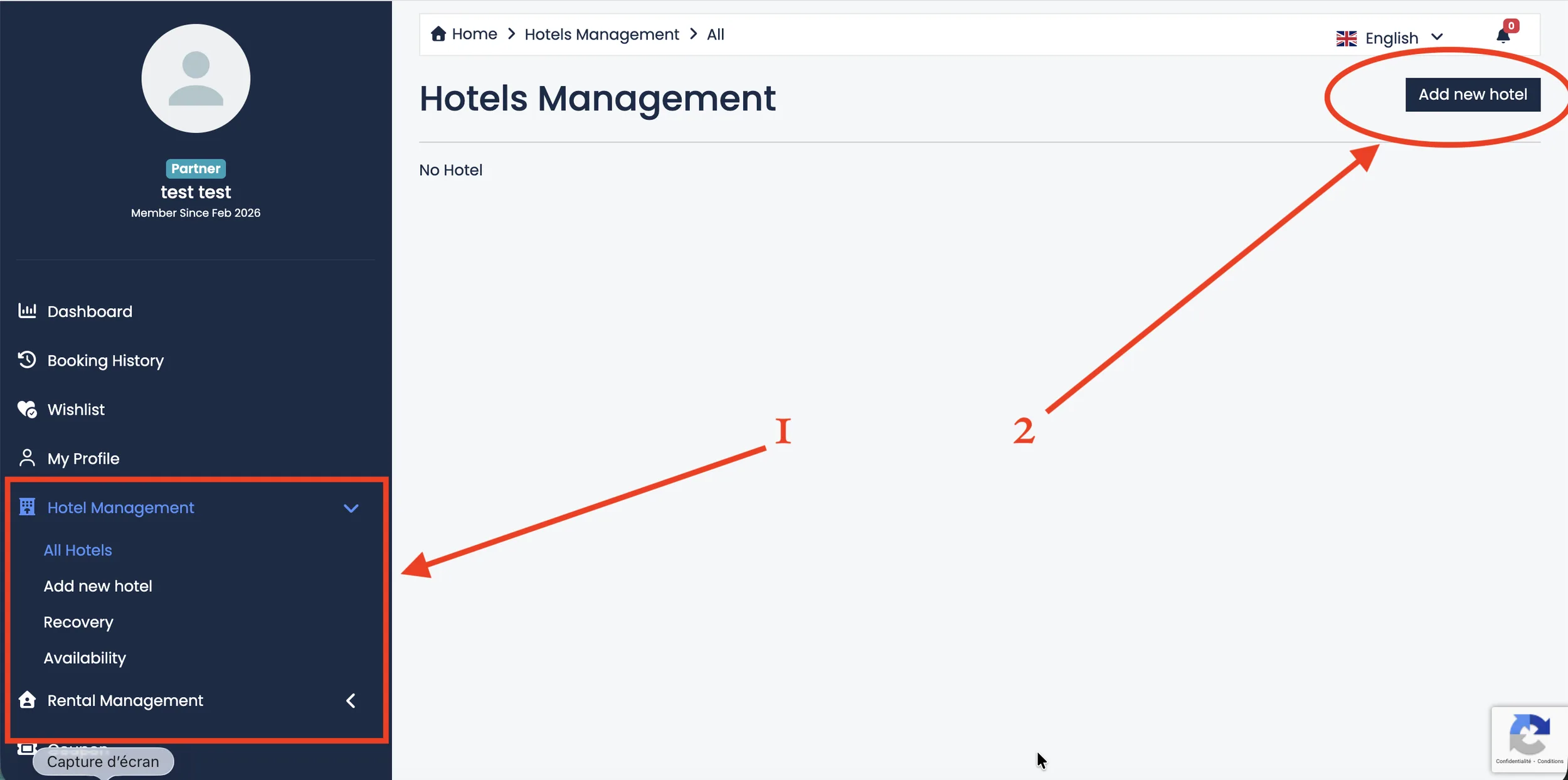
On the left side of your dashboard, you will see the sidebar menu.
Locate the service category you want to add, for example:
- Hotel Management
- Rental Management
- (Other service types you provide)
2. Add a New Listing
After entering the selected service section, click on:
- Add New Hotel
- Add New Rental
- (Or the equivalent button for your service type)
This will open the listing creation form.
In our example, we will demonstrate how to add a new hotel listing, but the process works the same way for other services.
Listing Tabs, Title & Description
After creating your hotel (or service), you will be redirected to the listing creation form.
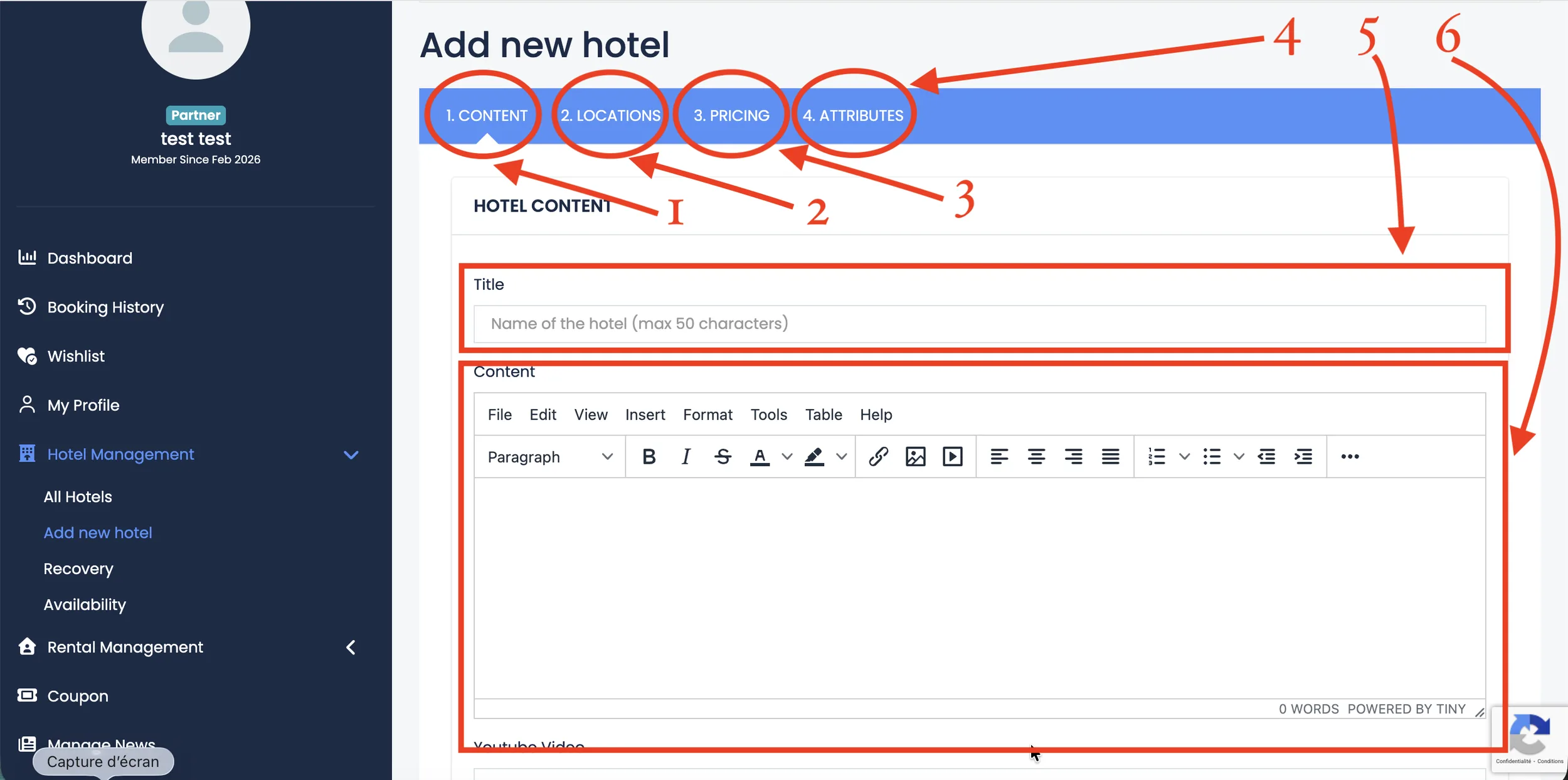
At the top of the page, you will see that the creation process is divided into 4 tabs:
- Content
- Locations
- Pricing
- Attributes
You will automatically land on the Content tab.
Here, you need to add the Title (5) of your listing. The title should represent the name of your hotel, company, or service.
Then, add the Description (6) that best explains your listing. Make sure your description clearly and professionally presents your services.
Important Notice:
If you do not fill in any information and click Save, your listing will still be created and may become visible.
However, this can negatively affect your reputation. Administrators may remove incomplete listings after some time, and guests may see an unprofessional or unfinished listing.
For this reason, it is very important to hide your listing from public view until it is fully completed.
Learn more about this here: Hide or Publish Your Listing
You can edit your listing at any time. Learn more about editing here: How to Edit Your Listing
Adding a YouTube Video
At the moment, we only support YouTube videos.
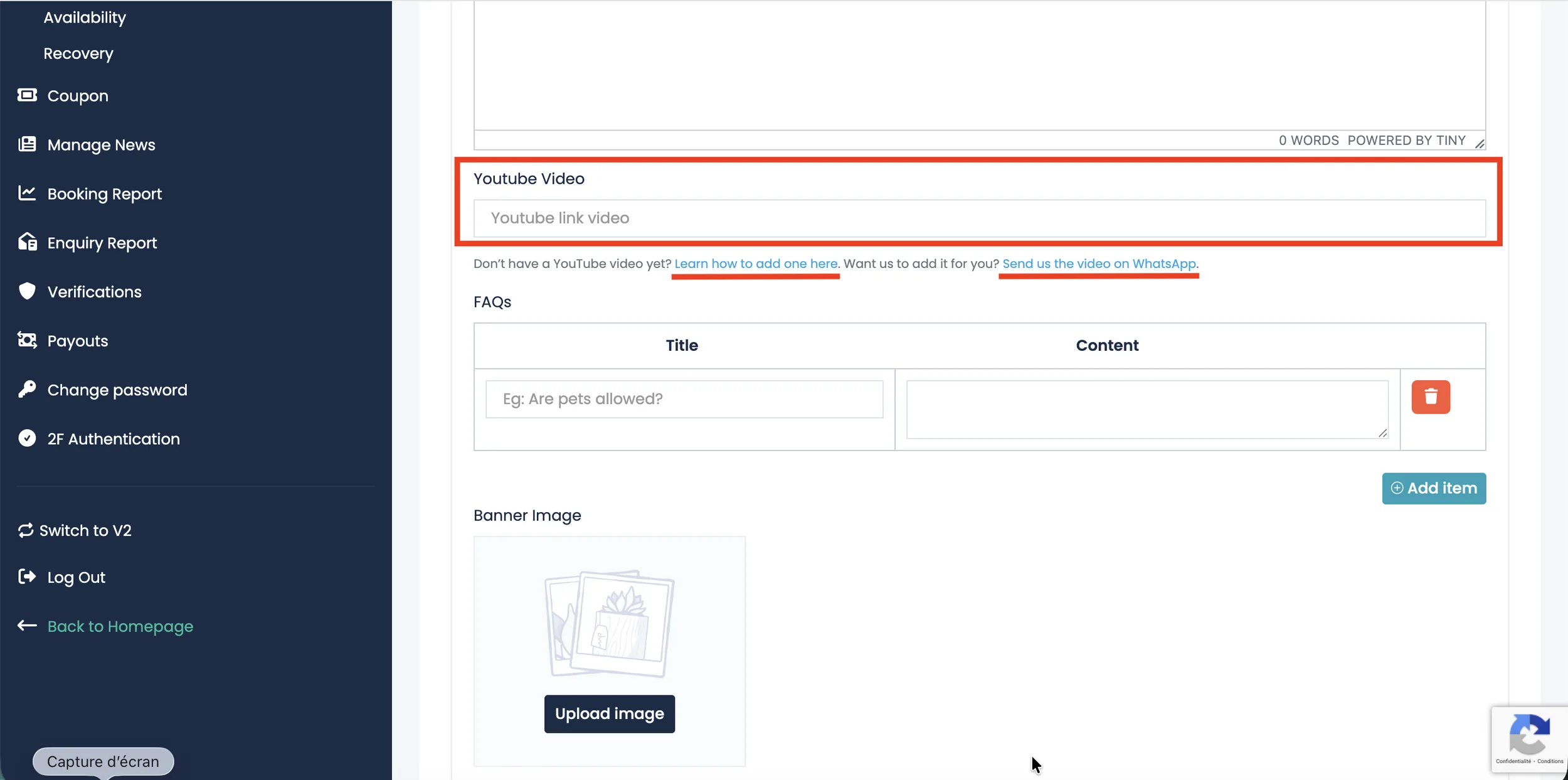
To add a video to your listing, simply paste your YouTube video link into the video input field.
If you do not have a YouTube video, we can upload it for you.
Below the video input field, click on the WhatsApp link. This will open a new conversation that already includes your Listing ID.
Simply attach your video file and send the message without deleting the pre-filled text.
Our team will then upload and connect the YouTube video to your listing for you.
Learn more about adding a video and how we can assist you here: How to Add a YouTube Video
Adding Images to Your Listing
High-quality images are essential for presenting your listing professionally and attracting more guests.
Banner Image
The Banner Image is the main image of your listing.
It will appear first on your listing page and will be the primary visual representation of your hotel, rental, or service.
Make sure to choose a clear, high-quality image that best represents your offer.
Gallery Images
You can upload up to 20 images per listing.
Gallery images allow guests to explore your property or service in more detail. Use this section to showcase rooms, facilities, amenities, surroundings, or any important features of your service.
The more informative and professional your gallery is, the more trust you build with potential guests.
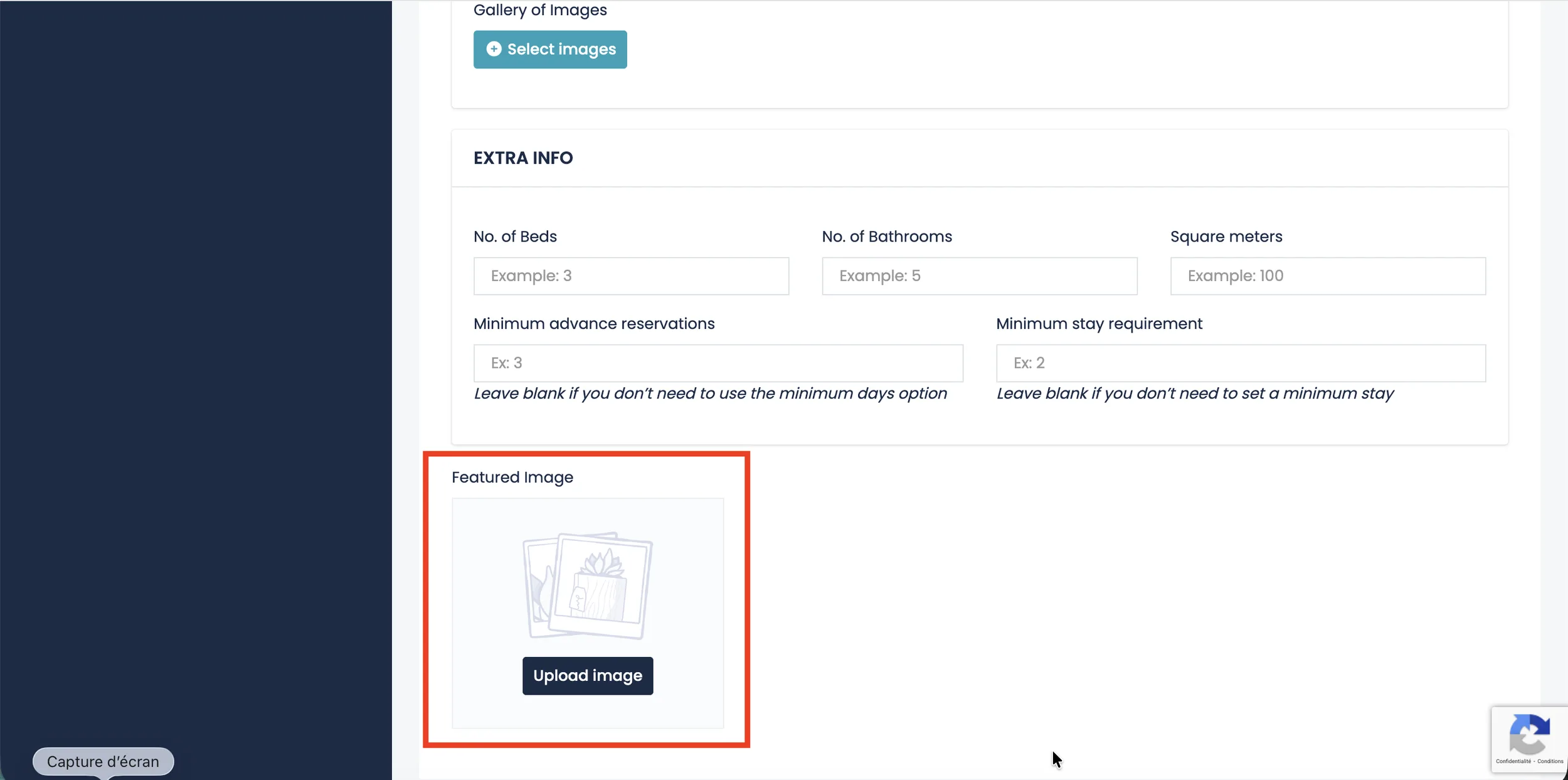
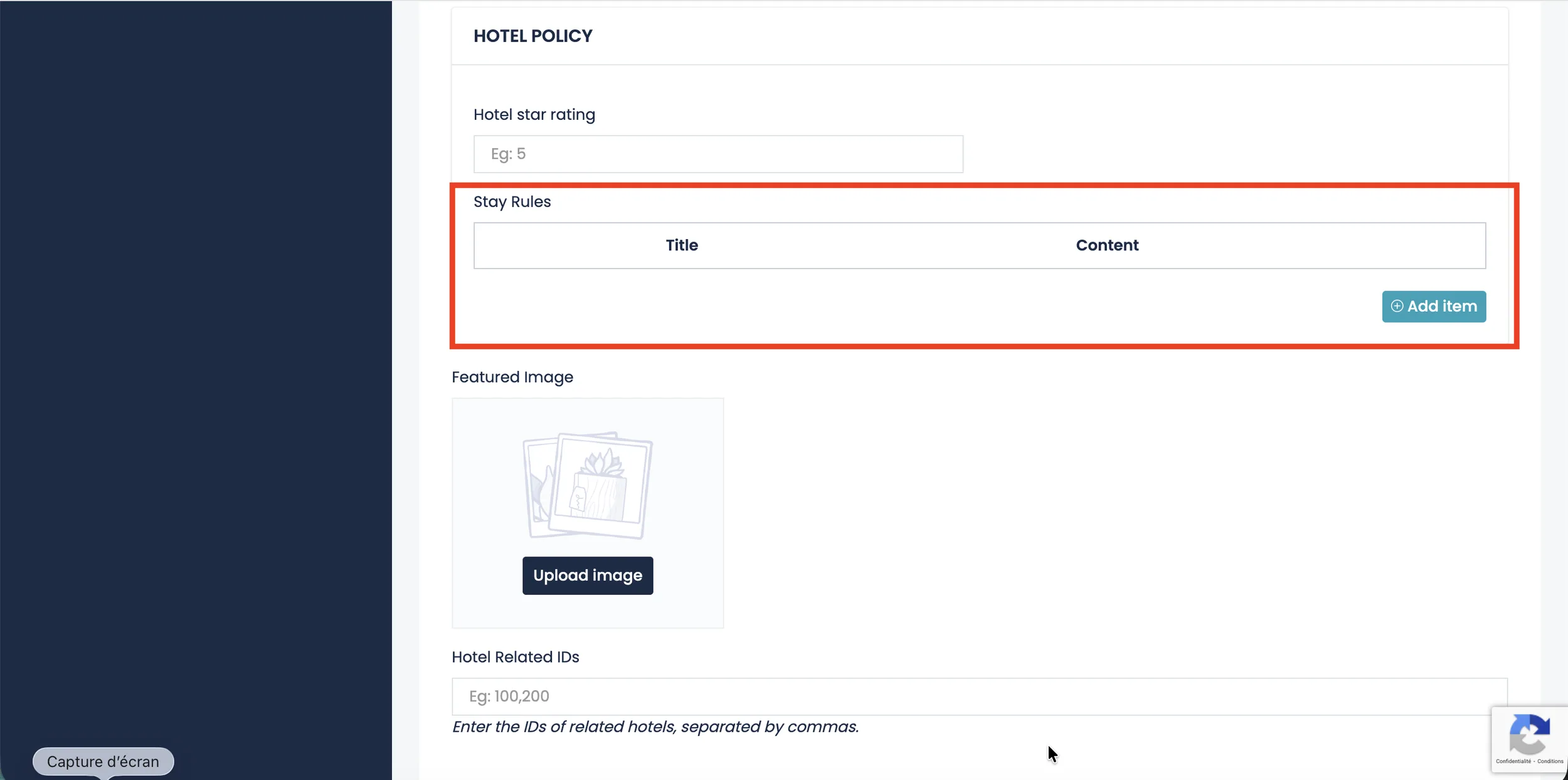
Featured Image
The Featured Image is displayed in search results and grid views.
This image represents your listing in previews across the platform, so it should be visually attractive and clearly show what you offer.
For more information about optimizing your photos, please consult Manage Listing Photos.


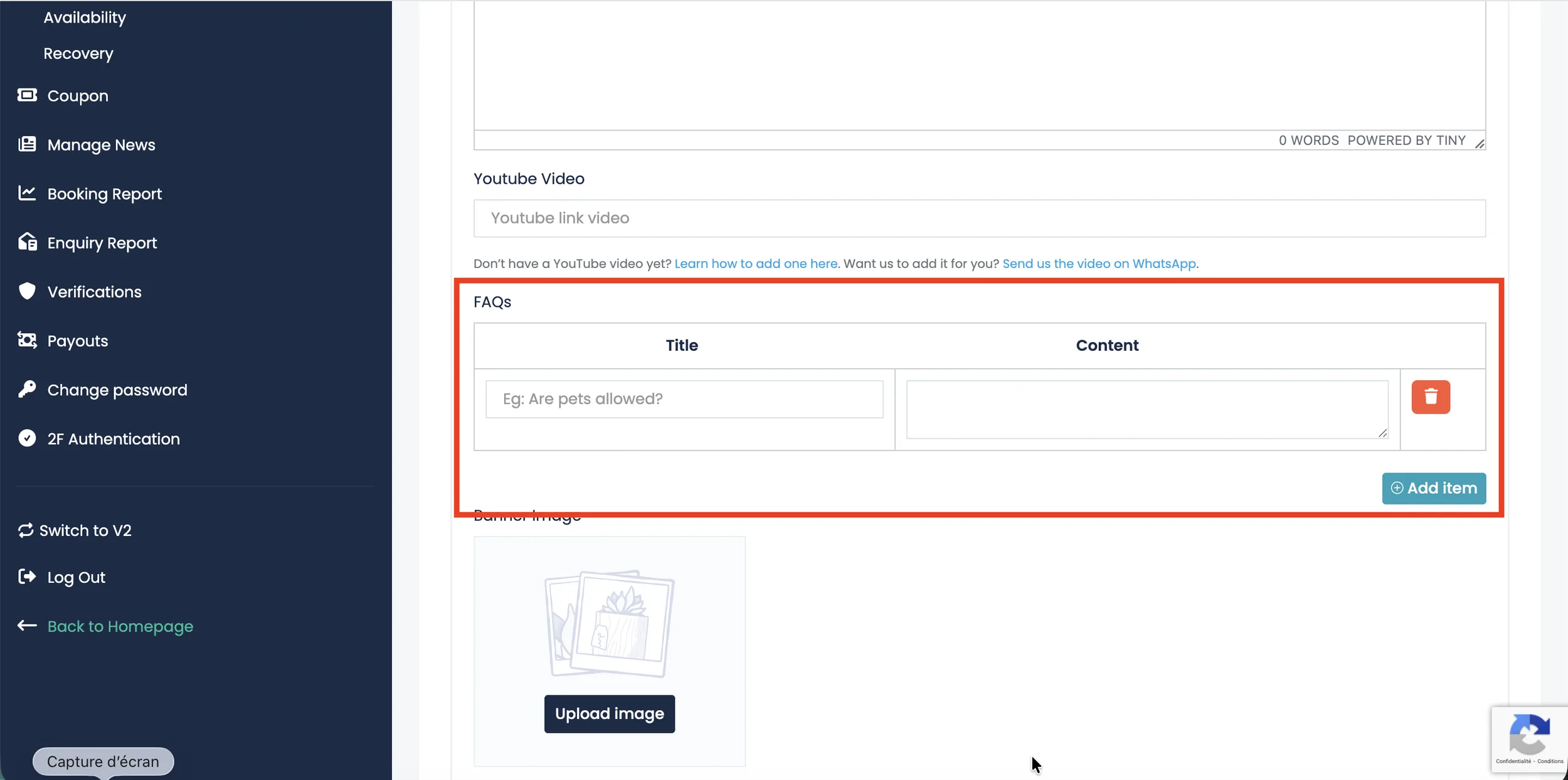
Hotel Policies / FAQs
The Hotel Policies or FAQs section allows you to define important rules and information related to your listing.
This is where you clearly explain what is allowed, what is not allowed, and any important house rules guests should know before booking.
How It Works
Each entry consists of:
- Title – This is your question, rule, or suggestion.
- Content – This is the explanation or answer related to that rule.
For example, you can use this section to define:
- Check-in and check-out rules
- Smoking policies
- Pet policies
- Noise restrictions
- Security deposits
Clearly written policies help prevent misunderstandings and protect both you and your guests.
Hotel Star Rating
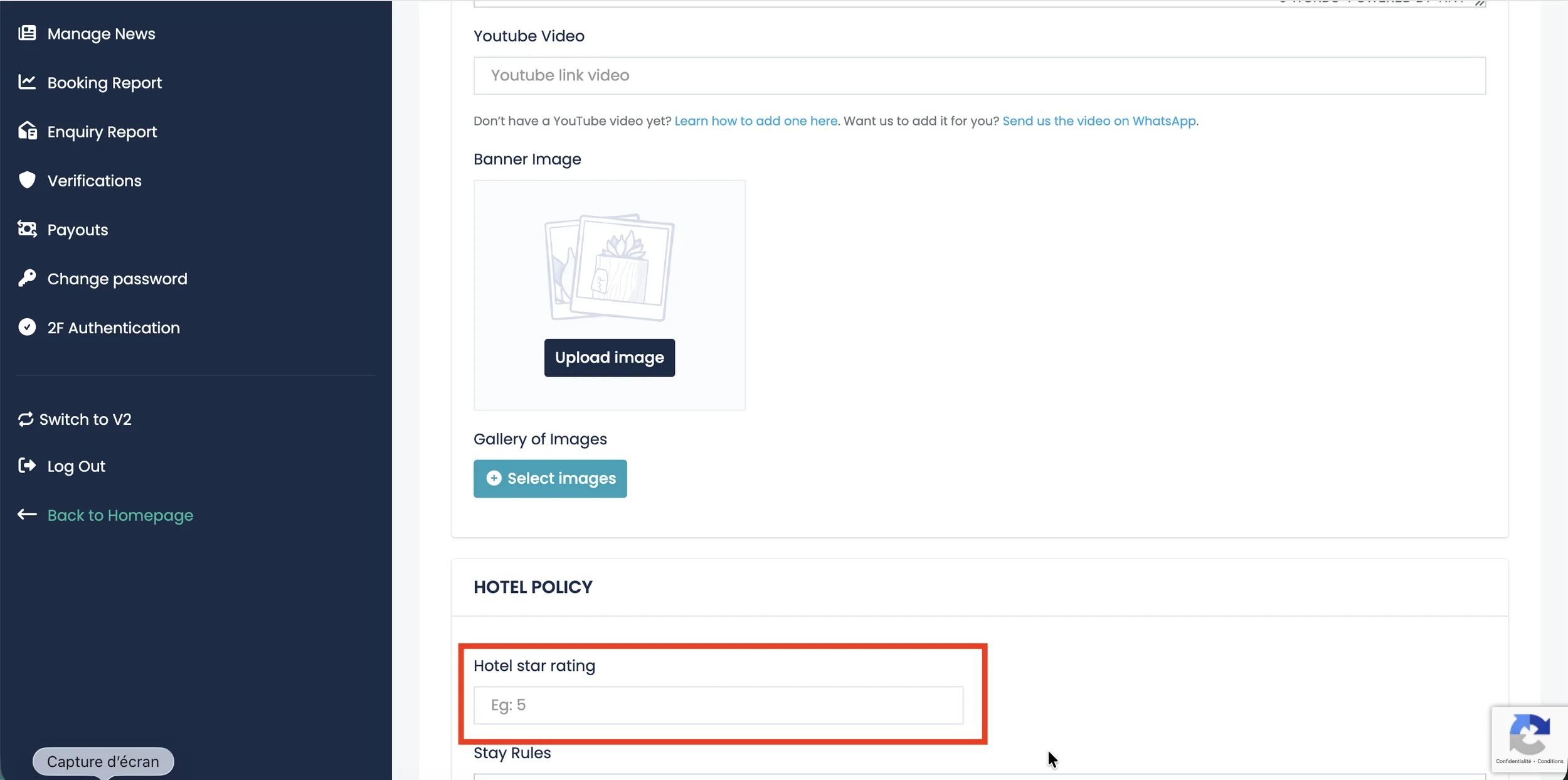
If your property is officially rated, you can enter the number of stars your hotel has received.
Simply input the correct number of stars according to your official classification.
This helps guests better understand the standard and quality level of your hotel.
If your property is a private accommodation or does not have an official star rating, this field is not required and can be left empty.
Continue Setting Up Your Listing
To complete your listing setup, please visit the following guides:
- For listing location, visit: Set Listing Location
- For listing pricing, visit: Set Listing Prices
- For listing attributes and amenities, visit: Add Amenities to Your Listing
- For iCal synchronization, visit: Synchronize Availability with iCal
Completing all sections ensures your listing is fully optimized and ready to receive bookings.
