Set Listing Location
Listing Location
In this section, you define the exact location of your property.
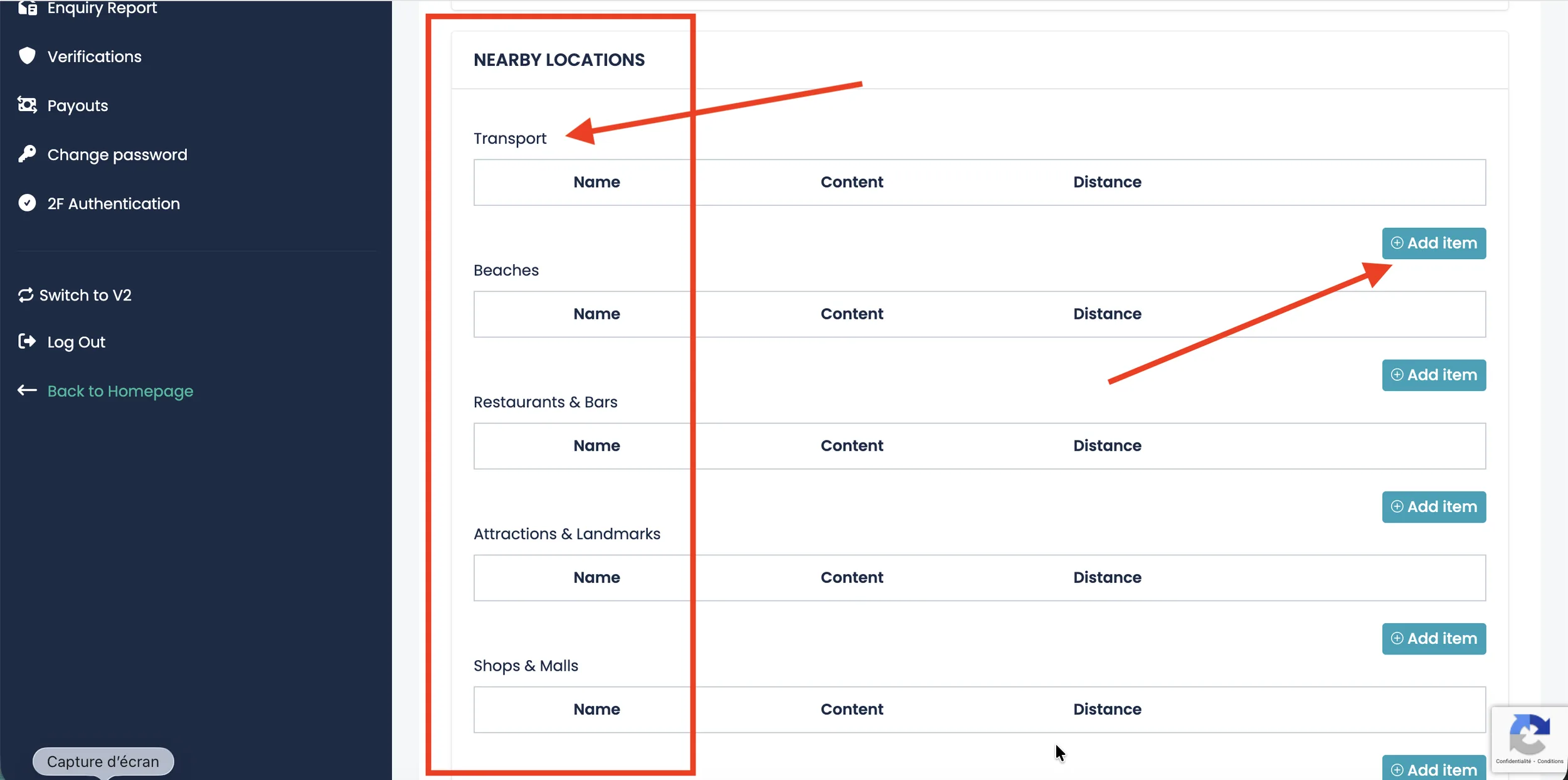
1. Location
Select the main location from the dropdown menu. Choose the city or area where your property is located.
2. Full Address
Enter the complete address of your property, including street name and number. Make sure the information is accurate to help guests easily find your accommodation.
3. Map Latitude
This field contains the latitude of your property on the map. It is automatically generated when you place the pin on the map.
4. Map Longitude
This field contains the longitude of your property. It is also automatically updated when adjusting the map pin.
5. Map Zoom
Defines how close the map appears when guests view your listing. You can adjust the zoom level to better display the exact location of your property.
To set the correct position, drag and drop the map pin to the exact location of your property. The latitude and longitude fields will update automatically.
Nearby Locations
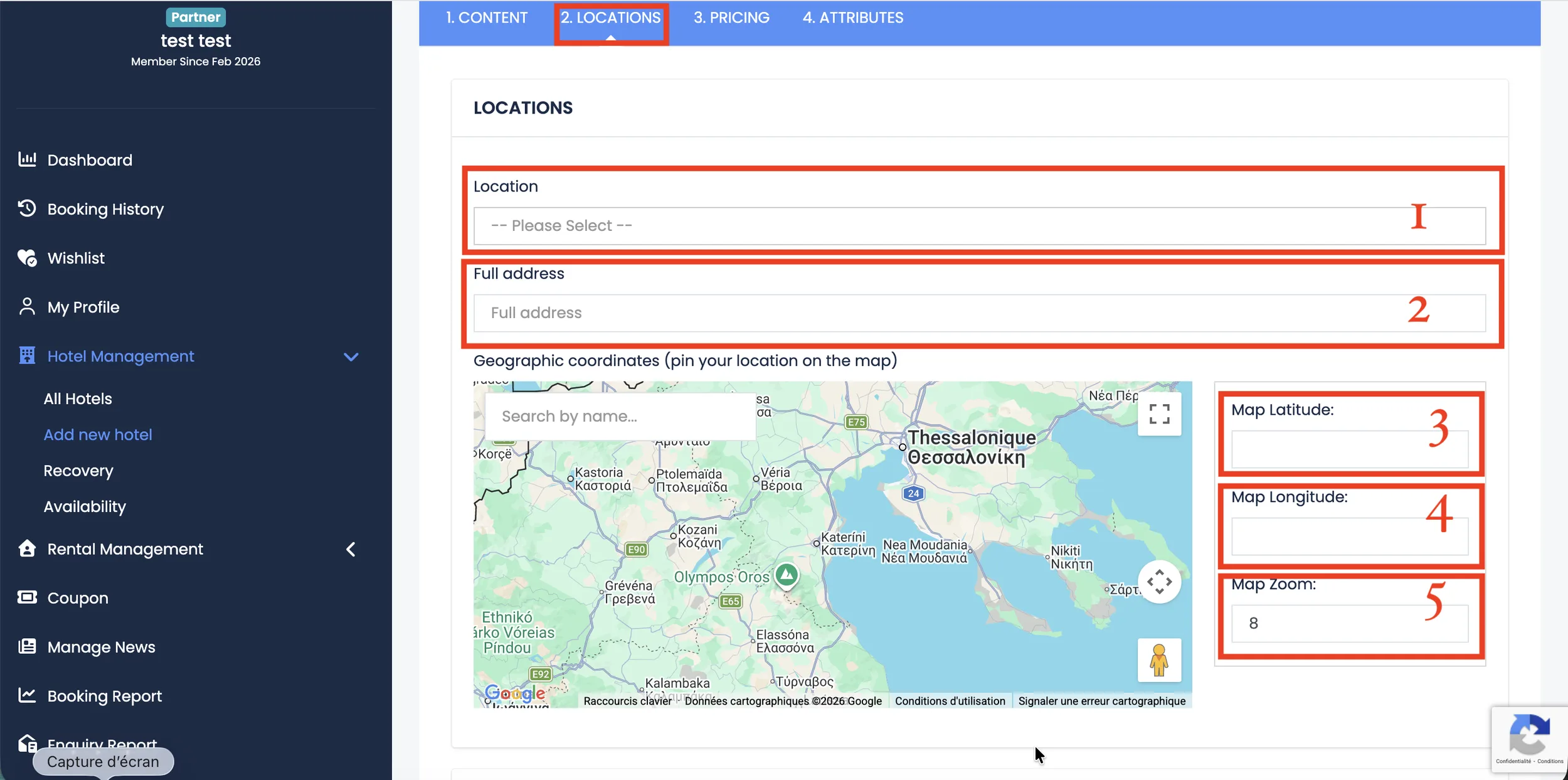
The Nearby Locations section allows you to highlight important places close to your property. This helps guests better understand the area and increases the attractiveness of your listing.
You can add nearby points of interest in the following categories:
- Transport
- Beaches
- Restaurants & Bars
- Attractions & Landmarks
- Shops & Malls
- ...
How to Add a Nearby Location
Click on the Add Item button next to the desired category.
For each location, you need to enter:
- Name – The name of the place (e.g., Bus Station, Central Beach, Airport).
- Content – A short description or additional details about the location.
- Distance – The distance from your property (e.g., 200m, 1.5 km).
Adding accurate nearby locations improves guest experience and helps them make booking decisions more easily.