Set Listing Prices
In this section, you define the pricing rules and booking conditions for your listing. The available fields may vary depending on whether you manage a hotel or a rental property.
Hotel Pricing Settings
1. Check-in Time
Set the time when guests are allowed to check in (e.g., 13:00 or 14:00). Please use the 24-hour format.
2. Check-out Time
Define the check-out time for your property (e.g., 10:00 or 11:00). Please use the 24-hour format.
3. Minimum Advance Reservations
Specify how many days in advance a booking must be made. Leave this field empty if you do not want to require advance notice.
4. Minimum Stay Requirement
Set the minimum number of nights required per booking. Leave this field empty if no minimum stay is required.
5. Base Price
Enter the standard price for your hotel listing. This is the default price guests will see when booking.
6. Enable Extra Price
Activate this option if you want to add additional charges.
7. Extra Price Name
Enter the name of the additional charge (e.g., Cleaning Fee, City Tax, Breakfast).
8. Extra Price Amount
Specify the amount of the extra charge.
9. Pricing Type
Choose how the extra price is applied:
- One-time – Applied once per booking.
- Per person – Applied per guest.
10. Add Item
Click Add Item to include the extra charge in your pricing setup. You can add multiple extra charges if needed.
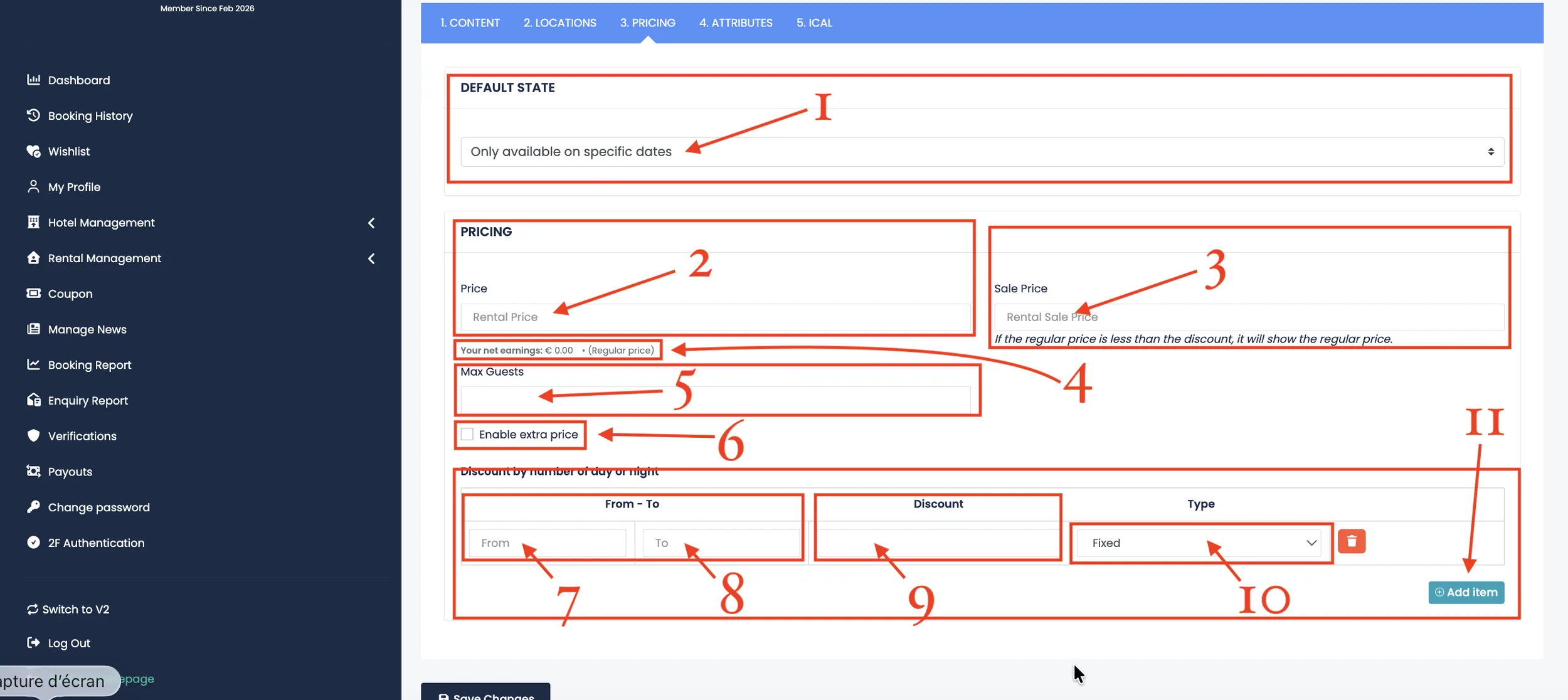
Rental Pricing Settings
1. Default State
Define the default availability status of your rental. For example, you can choose to make it available only on specific dates.
2. Base Price
Enter the standard rental price.
3. Sale Price
If you want to offer a discounted price, enter it here. If the regular price is lower than the sale price, the regular price will be displayed.
4. Net Earnings
This field shows your estimated earnings based on the regular price after platform deductions.
5. Maximum Guests
Set the maximum number of guests allowed for this rental.
6. Enable Extra Price
Activate this option to add additional charges to your rental listing.
7. From – To
Define a range of nights or days for special pricing rules.
8. Discount Value
Enter the discount amount for the selected range.
9. Discount Type
Choose whether the discount is fixed or percentage-based.
10. Add Item
Click Add Item to apply the discount rule. You can create multiple discount rules if needed.
Make sure to review your pricing carefully before saving changes. Accurate pricing settings help prevent booking issues and improve guest trust.
The prices defined in this section are publicly displayed and visible to all users on your listing page. You can set a regular base price or add a sale price to show a discount.
However, the final and definitive rental price for a specific room or property is configured in the availability section. To set exact prices for specific dates and periods, please visit: Set Availability.
In the availability section, you define the exact price per room or property for selected dates. This is the final price that will apply to bookings.